Installation
Unreal Engine’s Application Scale enlarges the entire editor at once, so every panel, toolbar and margin grows and you quickly run out of screen space. Panel Scaler was built for developers with low vision, or anyone who finds some panels hard to read: scale only the panels you actually read, and keep the rest of the editor as it is.
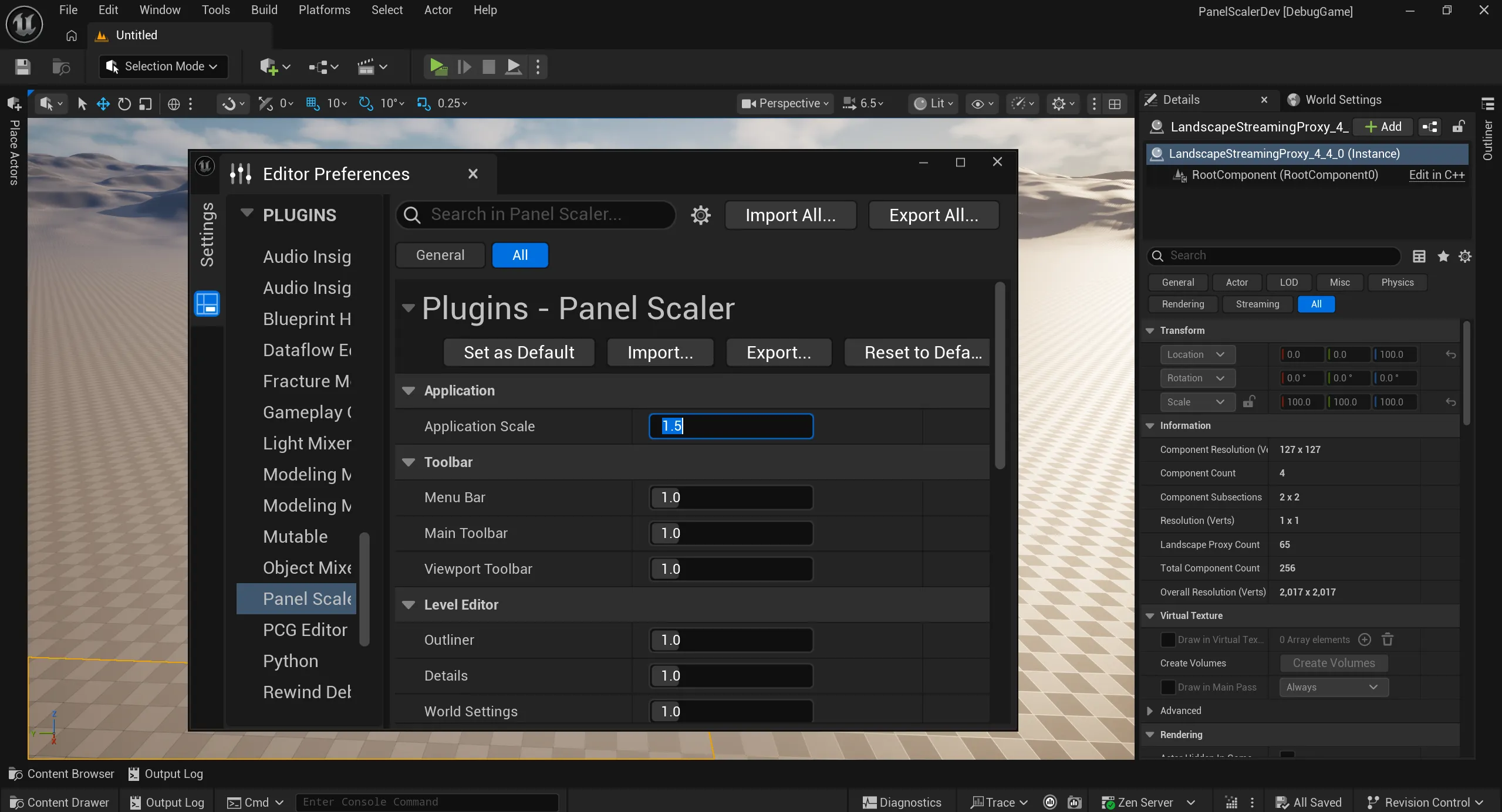 Application Scale 1.5: every panel, toolbar and margin grows, and the viewport gets smaller.
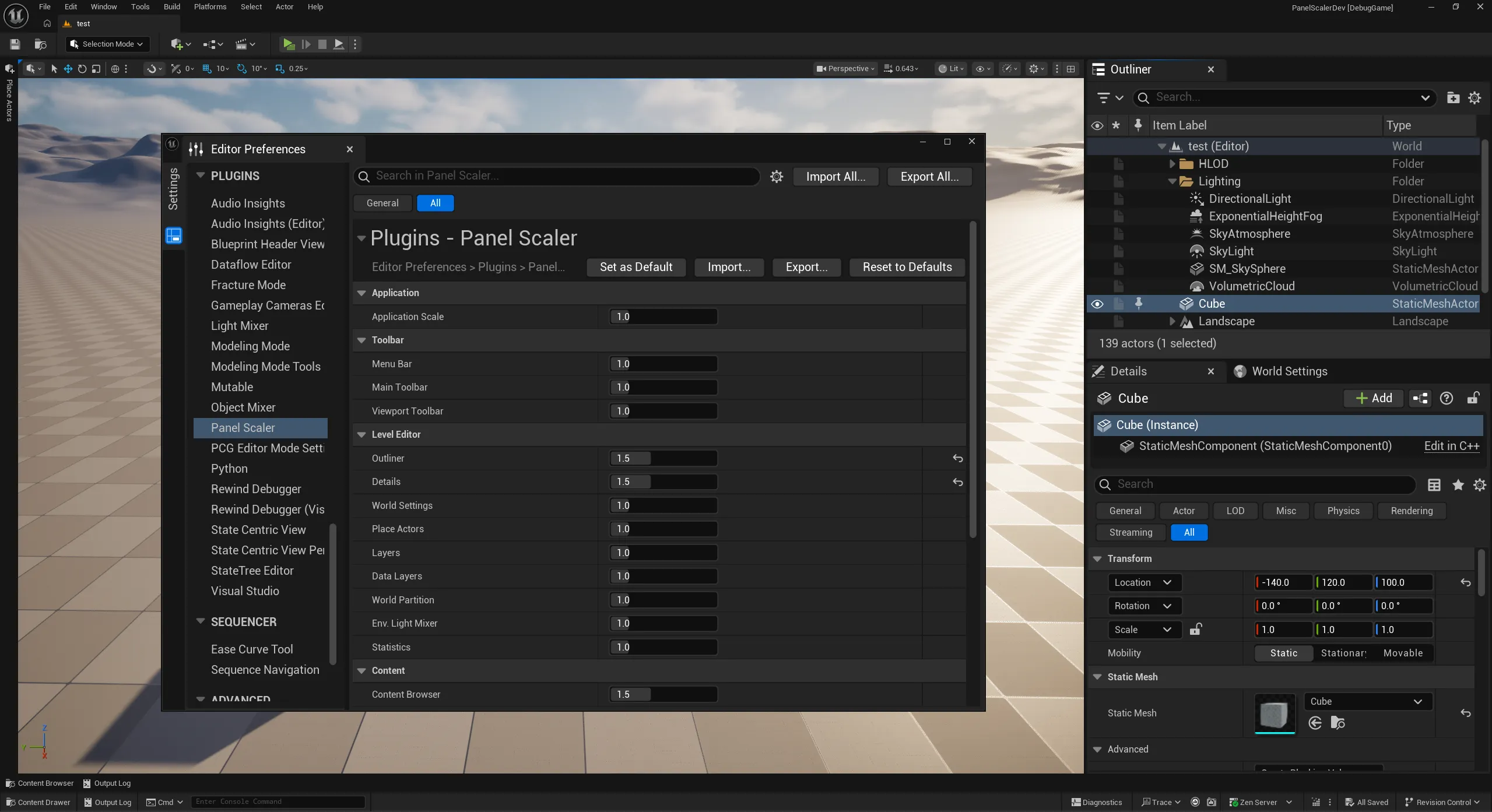 Panel Scaler: Application Scale stays at 1.0, and only the chosen panels (Outliner, Details, …) are at 1.5.
Requirements
Section titled “Requirements”| Item | Details |
|---|---|
| Engine | Unreal Engine 5.8 (tested) |
| Platform | Windows (tested) |
| Project type | Any (Blueprint-only or C++). The plugin is editor-only and is not included in packaged games. |
Install
Section titled “Install”From Fab
Section titled “From Fab”- Open the Panel Scaler page on Fab and add it to your library.
- In the Epic Games Launcher, go to Unreal Engine → Library → Fab Library, find Panel Scaler and click Install to Engine.
Manual install (project plugin)
Section titled “Manual install (project plugin)”- Copy the
PanelScalerfolder into your project’sPlugins/folder.MyProject/└─ Plugins/└─ PanelScaler/├─ PanelScaler.uplugin└─ Source/ - Open the project. If asked to rebuild the module, choose Yes.
Enable the plugin
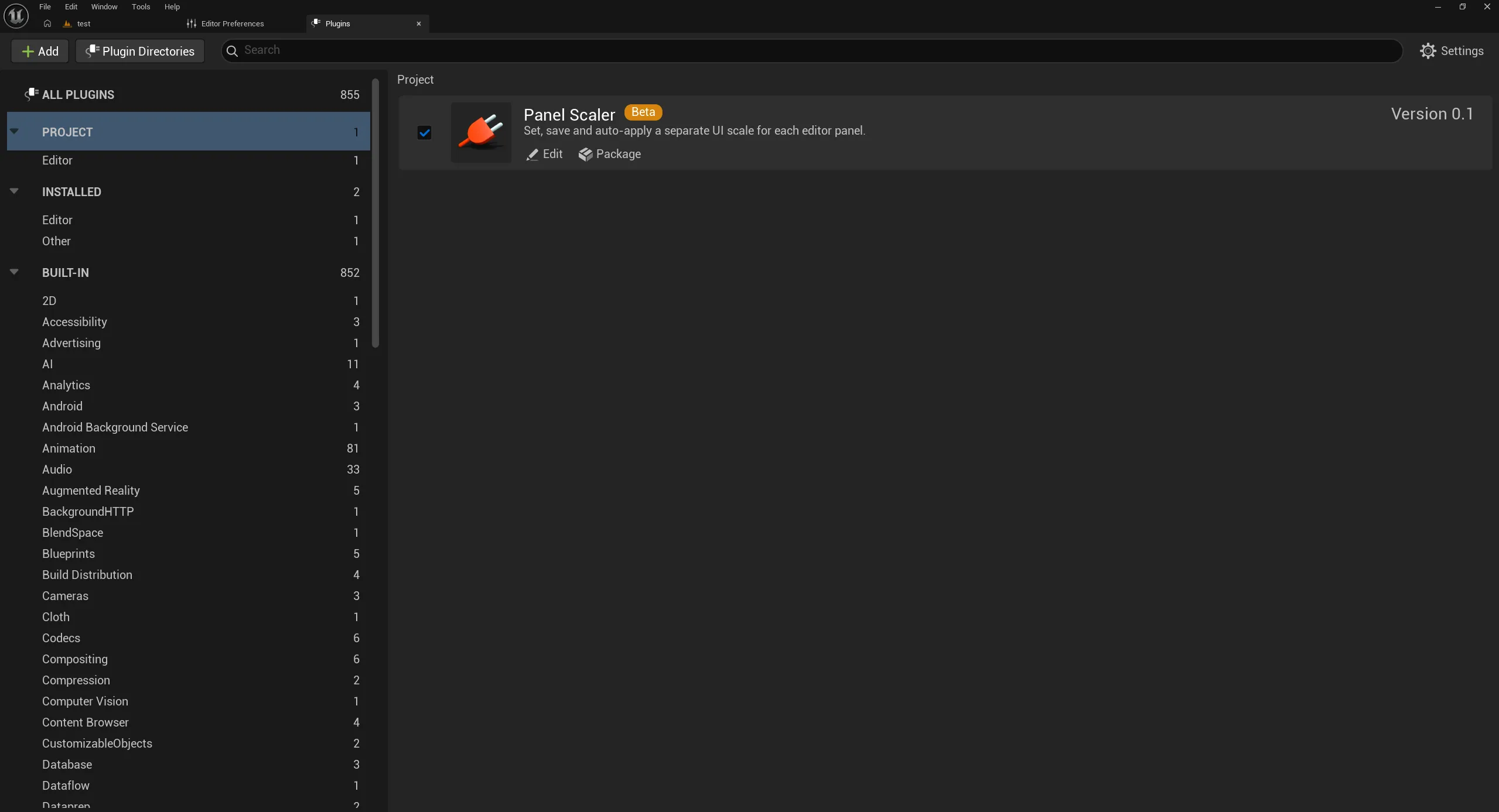
Section titled “Enable the plugin”- In the editor, open Edit → Plugins.
- Search for Panel Scaler (category Editor) and check Enabled.
- Restart the editor when prompted.
Quick start
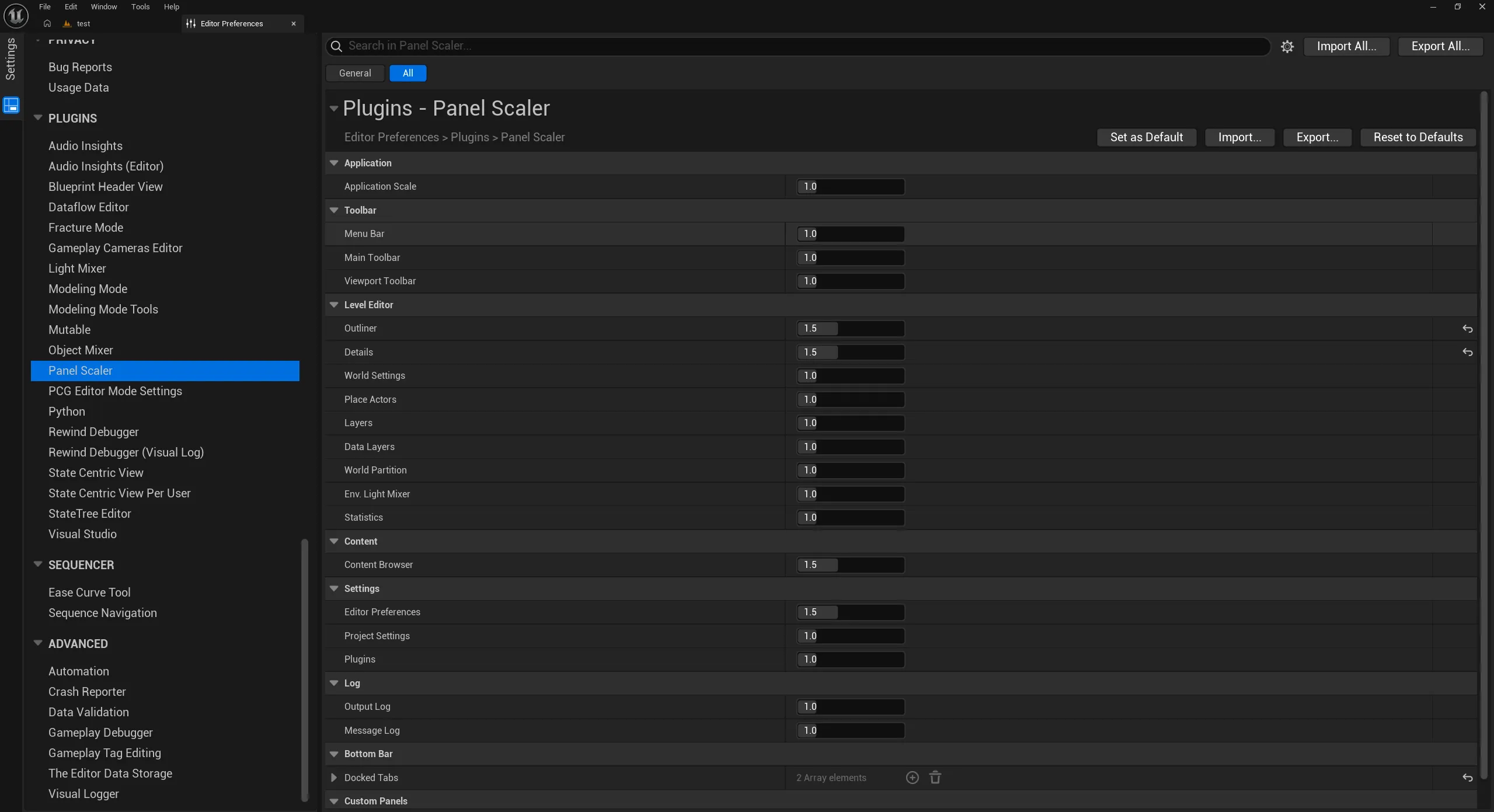
Section titled “Quick start”- Open Edit → Editor Preferences → Plugins → Panel Scaler.
- Under Level Editor, set Outliner to
1.5. - The Outliner grows immediately, including its tab bar. No restart is needed.
Where settings are saved
Section titled “Where settings are saved”Settings are saved per user, per project in:
<Project>/Saved/Config/WindowsEditor/EditorPerProjectUserSettings.ini[/Script/PanelScaler.PanelScalerSettings]To reset everything, click Reset to Defaults at the top of the Panel Scaler settings page.