Bottom Bar
Unreal’s Dock to Sidebar only supports the left and right edges. Panel Scaler adds a Bottom Bar right above the status bar (the row with Content Drawer, Output Log and Cmd). Docked tabs open as a drawer that slides up from the bar.
Dock a tab
Section titled “Dock a tab”- Right-click the tab label (for example Place Actors).
- Under Panel Scaler, choose Dock to Bottom Bar.
- The tab closes and a button appears on the Bottom Bar.
 Bottom Bar with two docked tabs, right above the status bar
The Bottom Bar is hidden while no tabs are docked.
Open and close
Section titled “Open and close”| Action | Result |
|---|---|
| Click a button | Opens that panel above the Bottom Bar |
| Click the same button again | Closes it |
| Click another button | Switches to that panel |
| Click anywhere outside the drawer | Closes it (unless pinned) |
| Drag the top edge of the drawer | Resizes it. The height is remembered. |
Menus opened from inside the drawer (for example the Outliner’s right-click menu) do not close it.
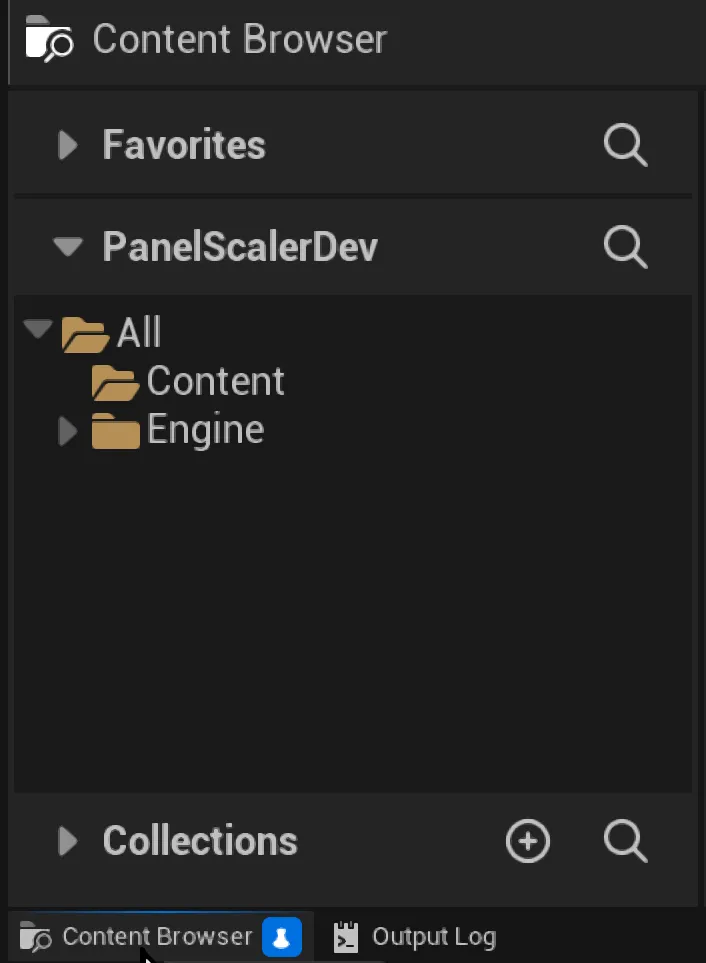 Content Browser opened from the Bottom Bar (pinned)
A pinned drawer stays open when you click elsewhere.
- Pin: hover a Bottom Bar button and click the pin icon, or click the pin icon in the drawer header. Pinning a closed panel opens it.
- Unpin: click the pin icon again. Clicking the button of a pinned panel also closes and unpins it.
- Only one drawer is open at a time, so one panel can be pinned.
- The pinned panel reopens automatically when the editor starts.
Restore a tab
Section titled “Restore a tab”Click Restore to Panel in the drawer header. The tab is removed from the Bottom Bar and reopens in the layout.
Opening the same tab from the Window menu also restores it.
A docked panel keeps using its panel scale. The whole drawer, including its header, follows the panel’s scale and updates instantly when you change the setting.
Saved state
Section titled “Saved state”Docked tabs, the pinned tab and the drawer height are saved. After restarting the editor, docked tabs come back to the Bottom Bar.