Panel Scale
Panel Scaler enlarges (or shrinks) individual editor panels. Text, icons and padding scale together, so nothing gets clipped and text stays sharp.
How to use
Section titled “How to use”- Open Edit → Editor Preferences → Plugins → Panel Scaler.
- Change the value of the panel you want, for example Level Editor → Details =
1.3. - The panel updates immediately.
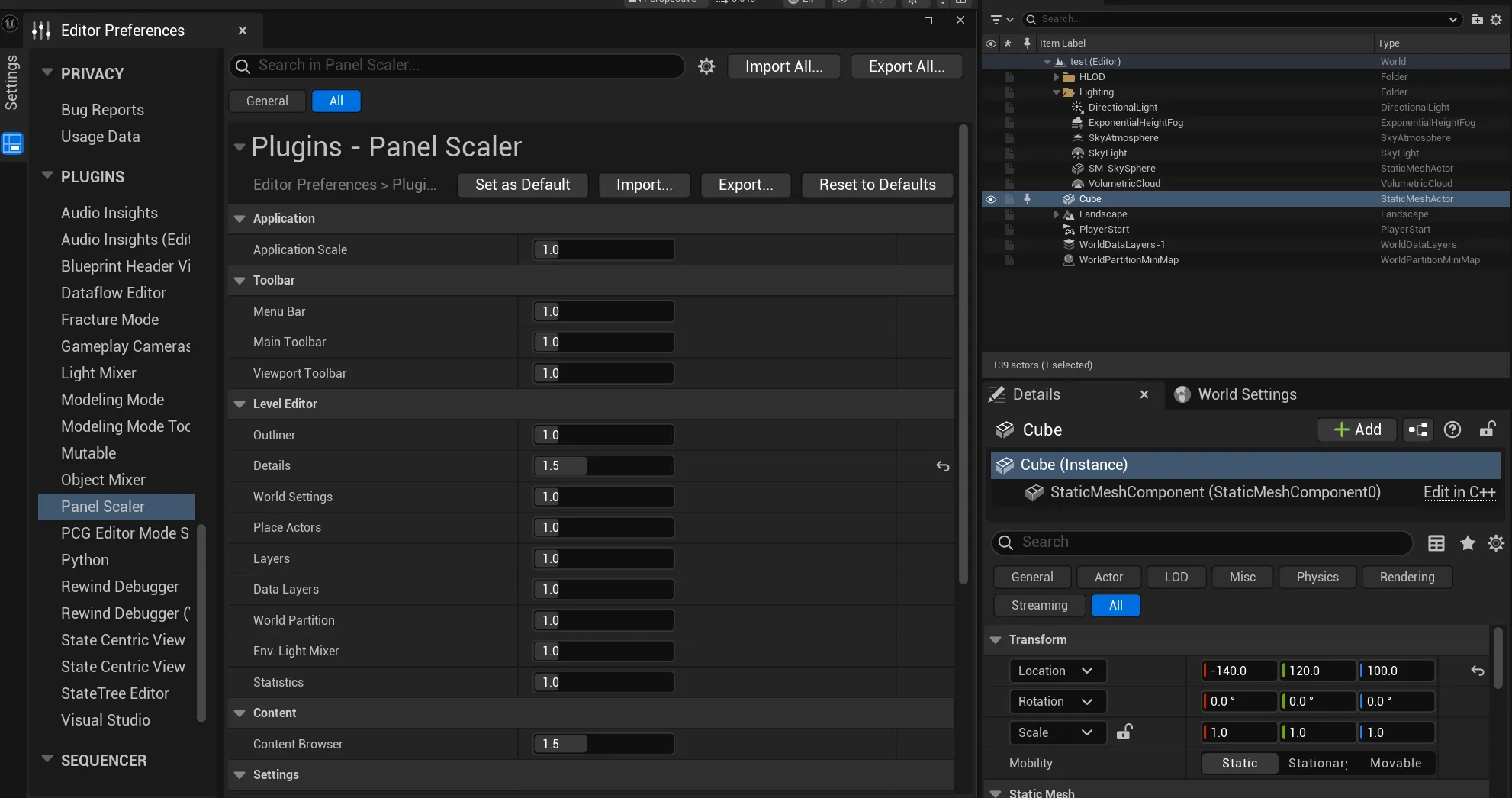 Outliner at
1.0
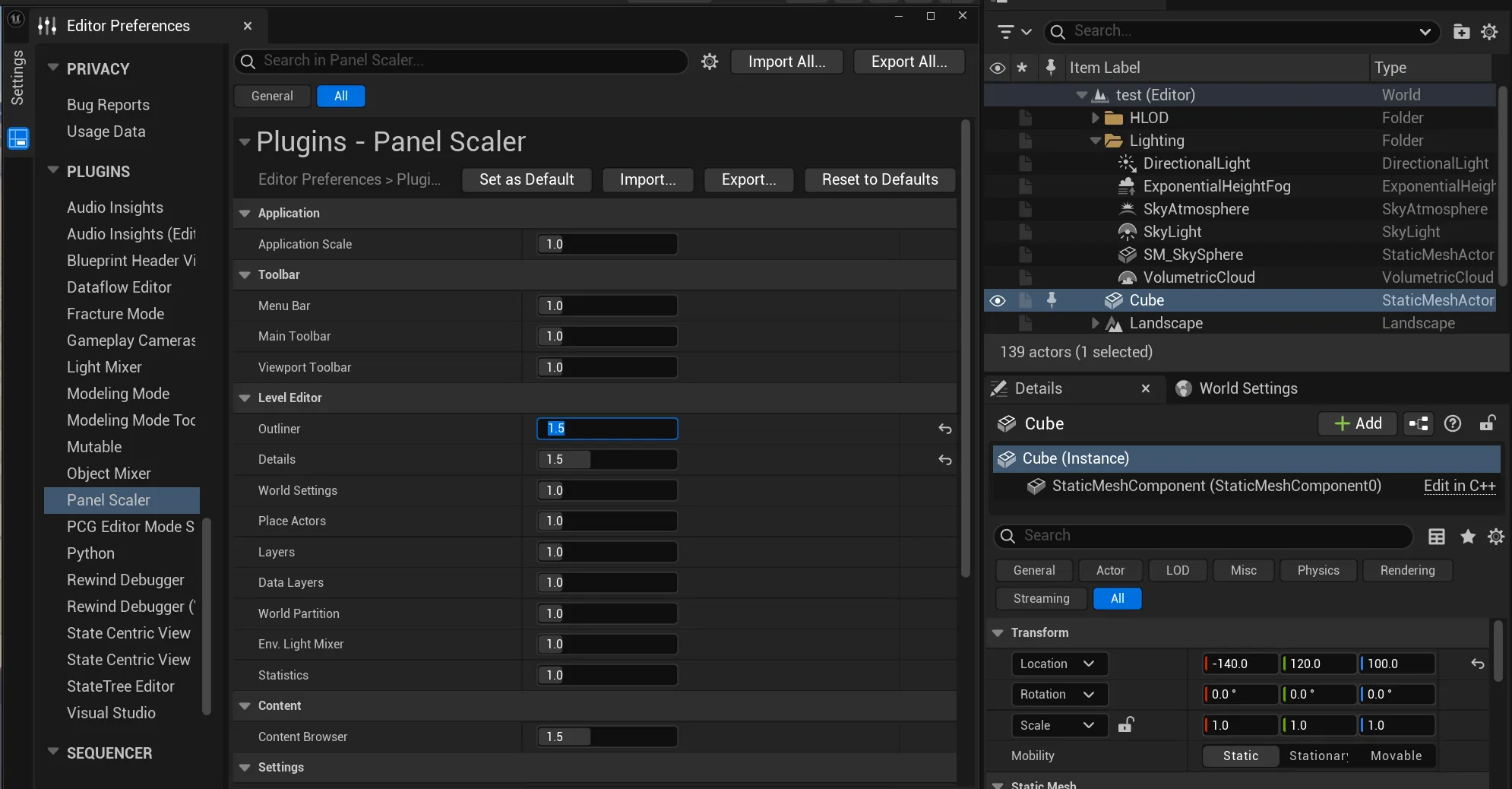 Outliner at
1.5: the rest of the editor is unchanged.
Supported panels
Section titled “Supported panels”| Category | Panel | Notes |
|---|---|---|
| Level Editor | Outliner | Outliner 1–4 |
| Details | Details 1–4 | |
| World Settings | ||
| Place Actors | ||
| Layers | ||
| Data Layers | ||
| World Partition | ||
| Env. Light Mixer | Environment Light Mixer | |
| Statistics | ||
| Content | Content Browser | Content Browser 1–4 |
| Settings | Editor Preferences | |
| Project Settings | ||
| Plugins | Plugin browser | |
| Log | Output Log | |
| Message Log |
Tab bar
Section titled “Tab bar”The tab bar above a panel is scaled too. Because Unreal lays out every tab in one tab bar at the same size, a tab bar uses the largest scale of the panels it contains.
For example, if Details is 1.5 and World Settings is 1.0 and both are in the same tab bar, both tab labels are drawn at 1.5. The panel contents still use their own scale.
 Details at
1.0
 Details at
1.5: the whole tab bar (Details and World Settings) grows with it.
Re-applied automatically
Section titled “Re-applied automatically”Panel Scaler checks open tabs about once per second, so the scale is applied again when you:
- start the editor,
- close and reopen a tab,
- move a tab to another tab bar or a floating window.
Custom Panels
Section titled “Custom Panels”For tabs that are not in the list above, add an entry under Custom Panels:
- Click + next to Custom Panels.
- Enter the tab’s Tab Id and a Scale.
If the same Tab Id is also in the built-in list, the Custom Panels value wins.
Example: Widget Reflector (Tab Id WidgetReflector, opened from Tools → Debug → Widget Reflector)

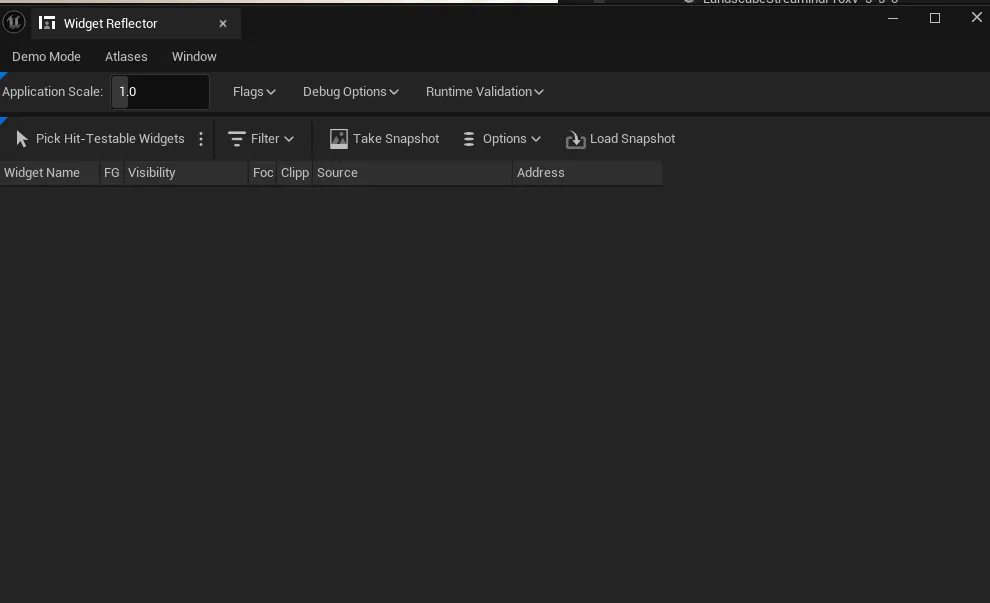 Widget Reflector at
1.0
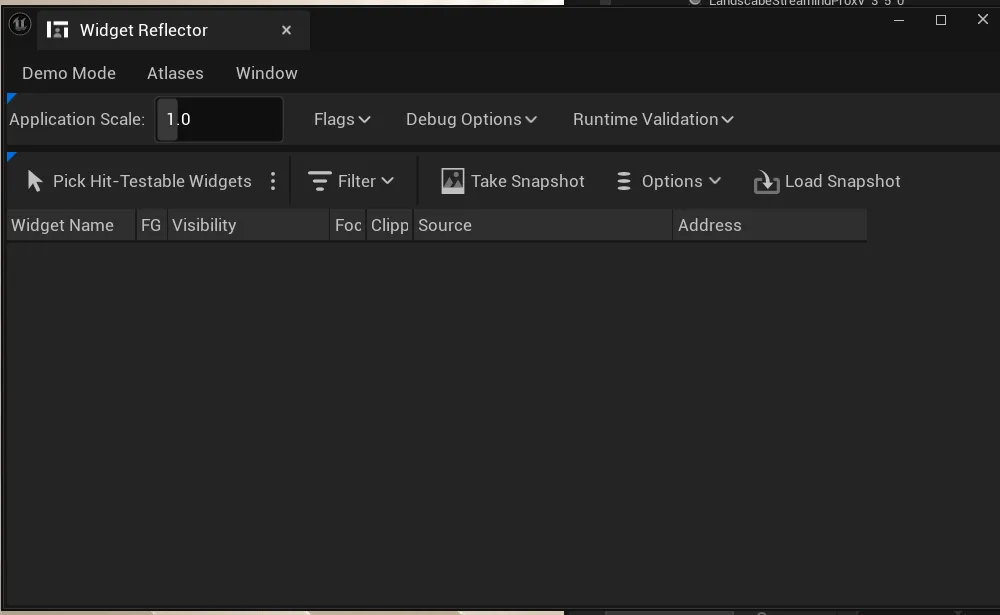 Widget Reflector at
1.3